

14
Cart
Total:$2,234.80
-
 Curea ceas Smartwatch Samsung Galaxy Watch 46mm, Samsung Watch Gear S3, umeline 22 mm Silicon Sport Black-Yellow
1 × $24.50
Curea ceas Smartwatch Samsung Galaxy Watch 46mm, Samsung Watch Gear S3, umeline 22 mm Silicon Sport Black-Yellow
1 × $24.50 -
Amplificator semnal GSM 4G / 3G Profesional umeline KW17A-GW, 2100 / 2600 MHz, Digital
1 × $771.75
-
Adaptor HDMI umeline iDragon USB C Dock, compatibil cu Samsung Galaxy S8
1 × $99.50
-
Casti Sport Wireless Bluetooth umeline CB41, Handsfree, Microfon, Control Volum, Magnet, Rose Gold
1 × $12.00
-
Alarma usa smart umeline V13, GSM, Activare vocala
1 × $287.10
-
Curea metalica Smartwatch Samsung Galaxy Watch 46mm, Samsung Watch Gear S3, umeline 22 mm Otel Inoxidabil, Black
1 × $39.50
-
Bratara Fitness umeline DM58i Plus, Display OLED, Monitorizare puls, Waterproof, Pedometru, Notificari, Gri
1 × $93.75
-
Aparat Spion de ascultat prin pereti umeline N21
1 × $88.20
-
Smartwatch cu Telefon umeline S30 Plus, BT, Camera, Negru
1 × $44.25
-
Boxa Portabila Bluetooth umeline DF19, Slot Card, Negru
1 × $62.30
-
Camera supraveghere umeline ProveCam AHD umeline 08E CCD Sony, 520 linii TV, 24 leduri IR, lentila 3.6mm, Antivandal
1 × $39.50
-
Amplificator semnal GSM 3G Profesional umeline KW17G-GD, 900/2100 MHz
1 × $449.25
-
Stick USB Spion Reportofon umeline STK100, 16GB, 18 ore Autonomie, 180 ore inregistrare
2 × $111.60
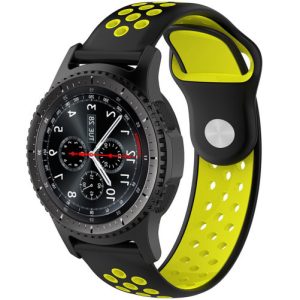 Curea ceas Smartwatch Samsung Galaxy Watch 46mm, Samsung Watch Gear S3, umeline 22 mm Silicon Sport Black-Yellow
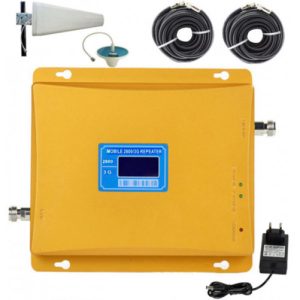 Amplificator semnal GSM 4G / 3G Profesional umeline KW17A-GW, 2100 / 2600 MHz, Digital
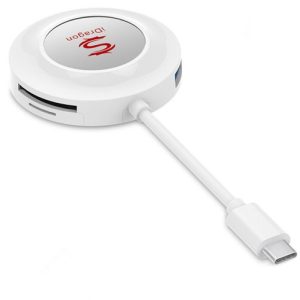 Adaptor HDMI umeline iDragon USB C Dock, compatibil cu Samsung Galaxy S8
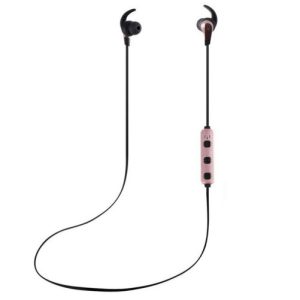 Casti Sport Wireless Bluetooth umeline CB41, Handsfree, Microfon, Control Volum, Magnet, Rose Gold
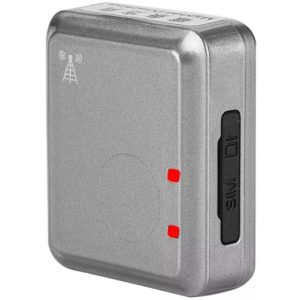 Alarma usa smart umeline V13, GSM, Activare vocala
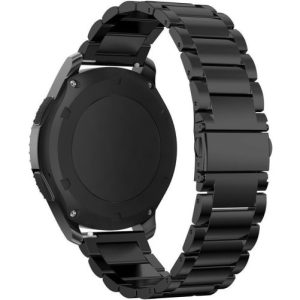 Curea metalica Smartwatch Samsung Galaxy Watch 46mm, Samsung Watch Gear S3, umeline 22 mm Otel Inoxidabil, Black
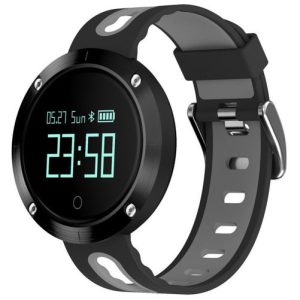 Bratara Fitness umeline DM58i Plus, Display OLED, Monitorizare puls, Waterproof, Pedometru, Notificari, Gri
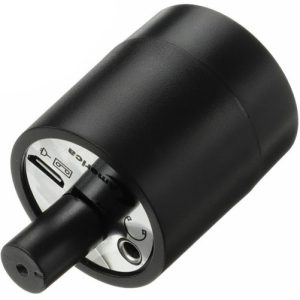 Aparat Spion de ascultat prin pereti umeline N21
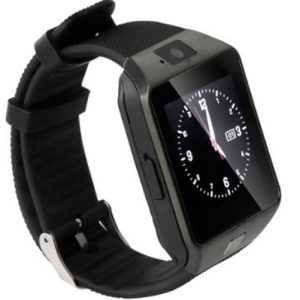 Smartwatch cu Telefon umeline S30 Plus, BT, Camera, Negru
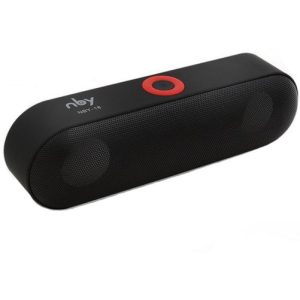 Boxa Portabila Bluetooth umeline DF19, Slot Card, Negru
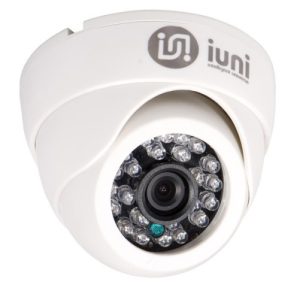 Camera supraveghere umeline ProveCam AHD umeline 08E CCD Sony, 520 linii TV, 24 leduri IR, lentila 3.6mm, Antivandal
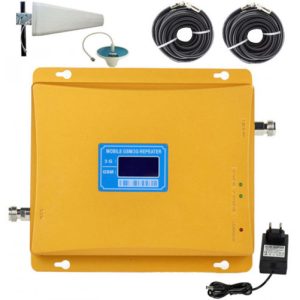 Amplificator semnal GSM 3G Profesional umeline KW17G-GD, 900/2100 MHz
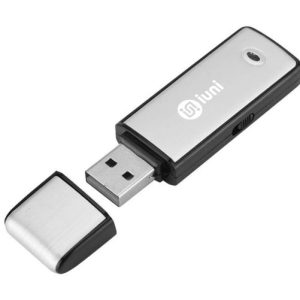 Stick USB Spion Reportofon umeline STK100, 16GB, 18 ore Autonomie, 180 ore inregistrare